
Audio Journal App: Turn Voice Notes Into Searchable Memories
The best journal entry is often the one you capture before it disappears. That is why an audio journal app can be easier to keep using than a blank writing page.
Quick tutorial
An audio journal app is a voice-first journaling tool that records spoken reflections, transcribes them into searchable text, and organizes the result into a timeline. In Memex, that workflow starts from the plus button, uses the microphone capture panel, and can run speech-to-text on-device.
In Memex, tap the + button on the home screen, choose the voice button in the lower-left corner, record what happened, and let Memex turn the capture into a timeline record. If you enable local speech-to-text, transcription runs on-device after a one-time model download.
- Open Memex and tap the plus button on the home timeline.
- Tap the microphone button in the lower-left corner of the capture panel.
- Record your voice note, then let Memex transcribe it and organize it into a searchable timeline record.
Try the tutorial
Download Memex and record your first voice journal
Use the same app shown in the screenshots: voice capture, local speech-to-text, timeline records, and private AI-assisted organization.
You do not need to sit down, open a keyboard, choose a perfect title, or organize a folder. You can speak the thought while it is still alive.
The catch is that many voice notes become another pile of recordings. They are easy to create, but hard to search, summarize, or connect later. A useful audio journal app should do more than save sound. It should help turn voice into a searchable timeline of your life.
What an audio journal app should actually do
A simple recorder is not enough. If you are using voice to journal, you probably want three things:
- fast capture when typing feels too slow
- transcription so the entry can be searched later
- organization so voice notes become part of a timeline, not a forgotten audio folder
This is where voice journaling starts to overlap with a searchable life record and a more practical AI journal app. The goal is not just to record your thoughts. The goal is to make them useful weeks or months later. If you are comparing notes tools broadly, read the AI note taking app guide; for transcript-specific intent, read the guide to voice memo transcription.
How to create an audio journal entry in Memex
Step 1
Open Memex and tap the plus button
Start from the Memex home timeline. Tap the + button to create a new record. This opens the capture panel where you can write, add media, or record by voice.
Step 2
Tap the voice button in the lower-left corner
In the capture panel, tap the microphone button in the lower-left corner. Speak naturally: a daily reflection, a quick idea, a travel note, a memory, or a messy thought you do not want to lose.
Step 3
Record first, organize later
You do not need to decide where the entry belongs while recording. The practical benefit of an audio journal app is that capture can stay lightweight, while organization happens afterward. If you prefer durable plain-text records, Memex also fits the broader idea of a Markdown journal app.
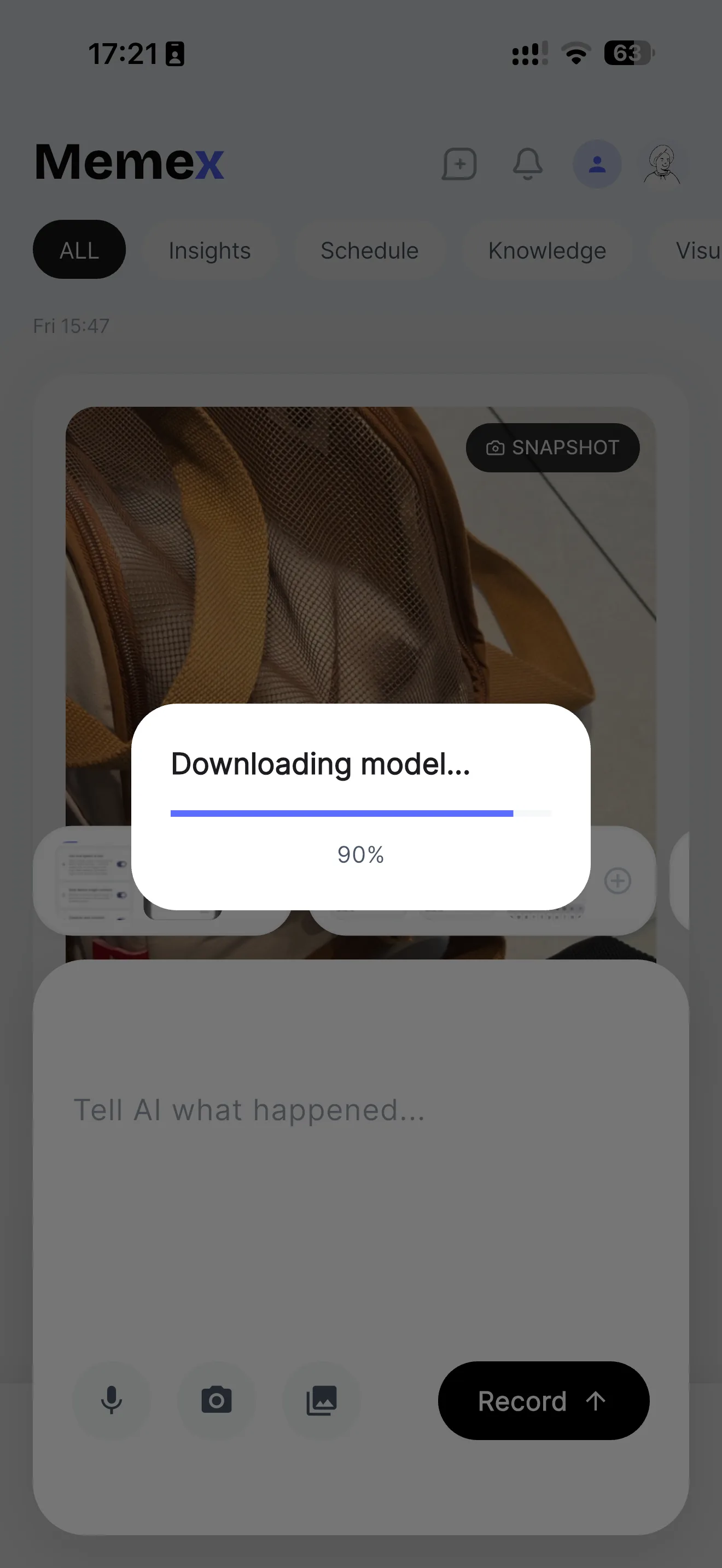
Use local speech-to-text for private, searchable voice notes
The first time you use local transcription, Memex may ask you to download a speech model. This is a one-time download of roughly 230MB.
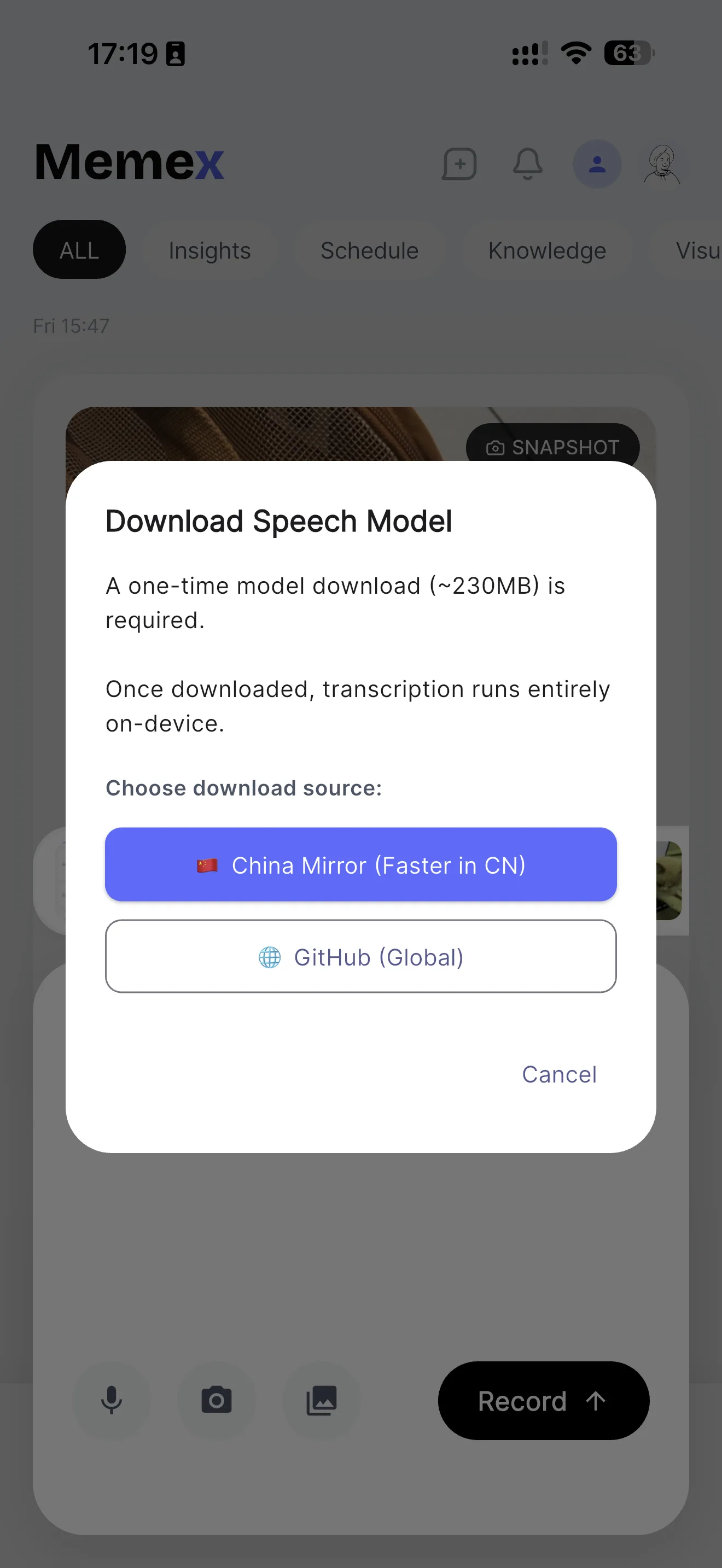
Once the model is downloaded, transcription can run on-device. That matters because audio journals are personal. A voice note can include names, places, emotions, health details, family context, or private plans. For a private AI journal app or a journal app without an account, where transcription happens is not a small detail.
Choose whether audio is transcribed locally or sent directly to the model
Memex also gives you a setting for how voice input should be handled. In Settings, the option Use local speech to text controls the flow:
- When enabled, audio is transcribed on-device before sending.
- When disabled, the original audio is sent directly to the model.
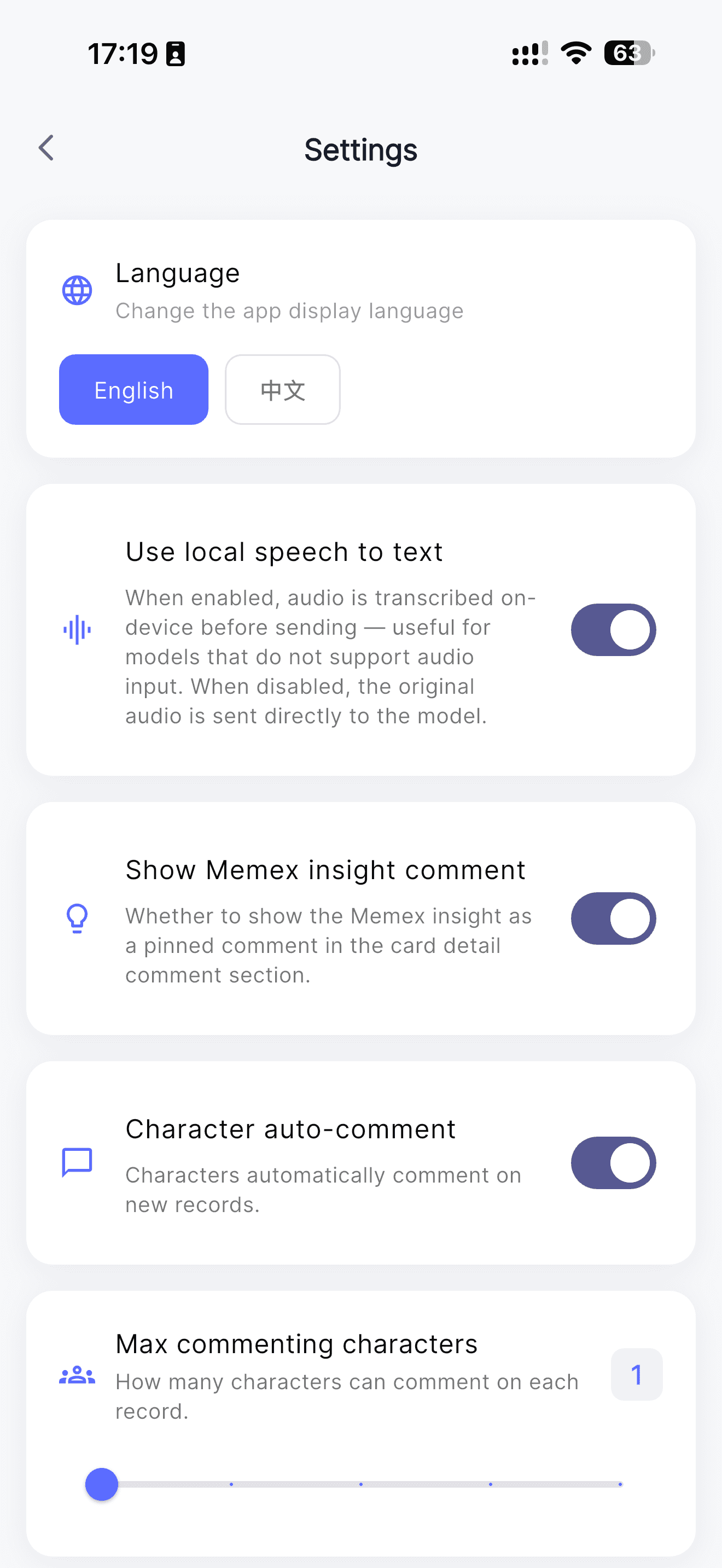
Local transcription is useful when you want on-device processing or when your model does not support audio input. Sending original audio directly can be useful when you use a model that understands audio and you want it to work from the full voice input.
Why voice notes work so well for life logging
Voice is useful because real life does not wait for a clean writing session. You might want to capture something while walking, lying in bed, getting off a call, or noticing a detail you will forget in ten minutes.
- what happened today
- why a moment felt important
- an idea before it becomes polished
- a memory attached to a photo
- a reflection you are too tired to type
This is also why voice journaling can feel more honest than writing. If you are still building the habit, the guide on how to start journaling pairs well with this audio-first workflow.
How Memex turns voice notes into a searchable life timeline
Memex is built around timeline-based personal memory. A voice note can become part of a broader record with photos, text, insights, and other fragments from the same period. If photos are the main way you capture daily life, the guide to using a journal app with photos shows how those visual records can become searchable too. If you are comparing the wider category, the free online journal guide explains why text, photos, voice, privacy, and search now belong in the same decision. That helps your journal become something you can search and revisit, not just something you store. This is closer to a local-first app for life logging than a simple voice recorder.
This is the difference between a voice recorder and a life timeline. A recorder answers, “What did I say?” A searchable timeline helps answer, “What was happening in my life when I said it?”
Privacy, open source, and where to download Memex
If you are going to use an app as a long-term memory system, trust matters. Memex is designed as a local-first AI journal and is open source on GitHub. As of June 10, 2026, the Memex GitHub repository has 408 stars and 37 forks.
You can try Memex on the App Store or Google Play. If you care about where your journal data goes, you may also want to read the guide to local-first apps. If you are comparing broader tools, the journal software guide explains how AI-driven journals differ from older diary apps. For platform-specific voice workflows, see the Android journal app and iOS journal app guides.
The point of an audio journal app is not to make journaling more complicated. It is to make capture easier when life is moving quickly.
If your voice notes can become searchable, private, and connected to a timeline, they stop being loose recordings. They become part of a memory system you can actually use.
Try the tutorial
Download Memex and record your first voice journal
Use the same app shown in the screenshots: voice capture, local speech-to-text, timeline records, and private AI-assisted organization.
FAQ
What is an audio journal app?
An audio journal app lets you capture thoughts by speaking instead of typing. A stronger audio journal app also transcribes, organizes, and makes those voice notes searchable later.
Is voice journaling better than typing?
Voice journaling is often better for fast capture because it has less friction. Typing is still useful for editing, but voice works well when you are walking, tired, traveling, or trying to preserve a thought before it disappears.
Can Memex transcribe voice notes on-device?
Yes. Memex can use local speech-to-text after a one-time speech model download. When local transcription is enabled, audio is transcribed on-device before being sent onward.
Can Memex send original audio directly to an AI model?
Yes. In Settings, disabling local speech-to-text sends the original audio directly to the model. This is useful when you use a model that supports audio input.